<turbo-stream action="update" target="wiki_card"><template>
<h1> How to Connect Rapidi to Your Slack Workspace (Admin Only)</h1>
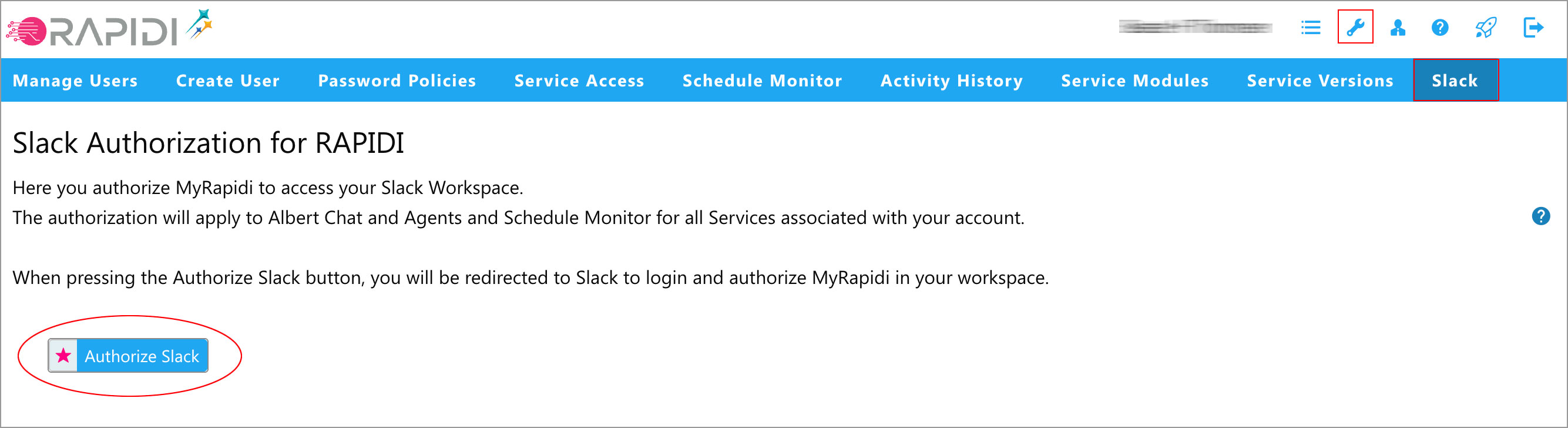
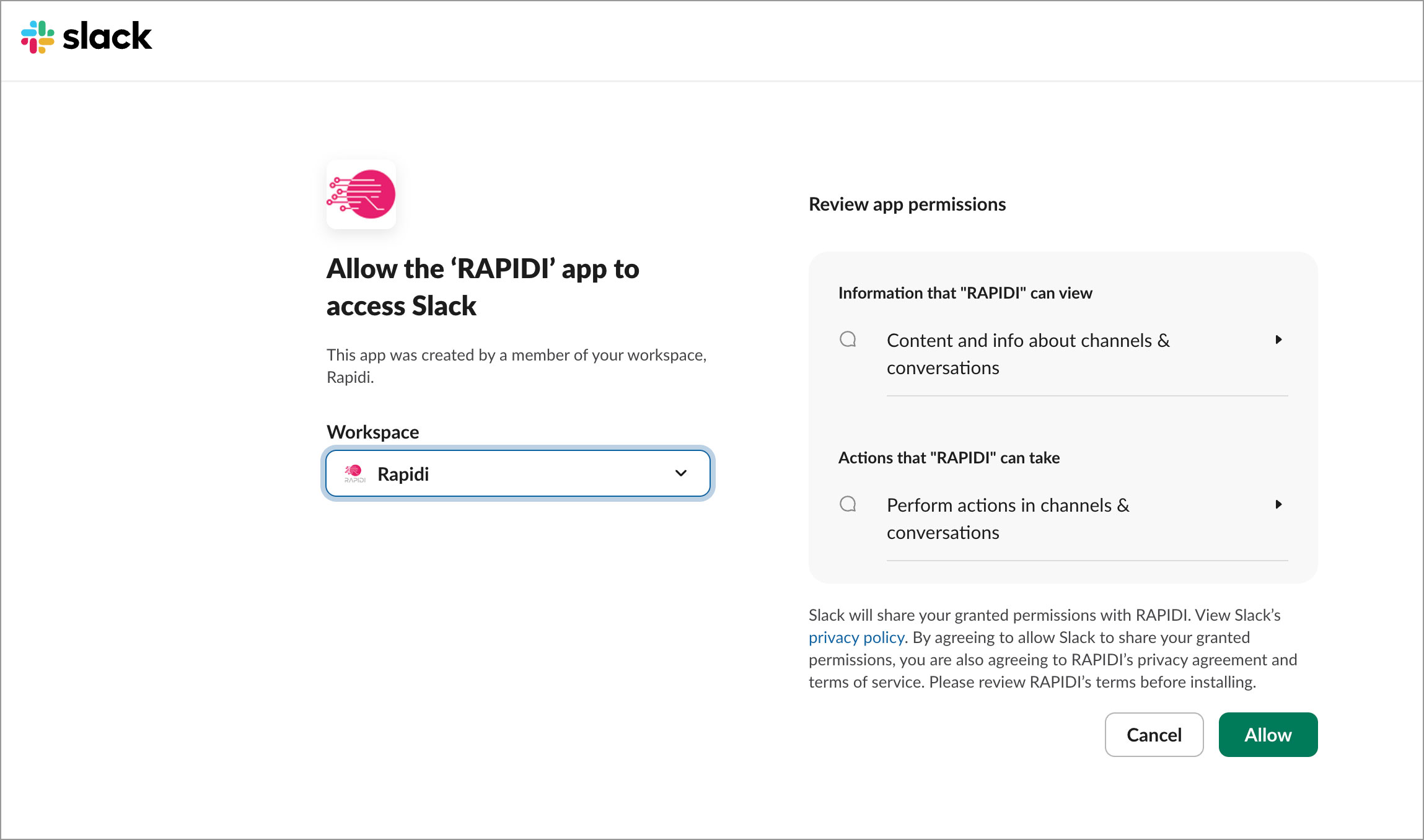
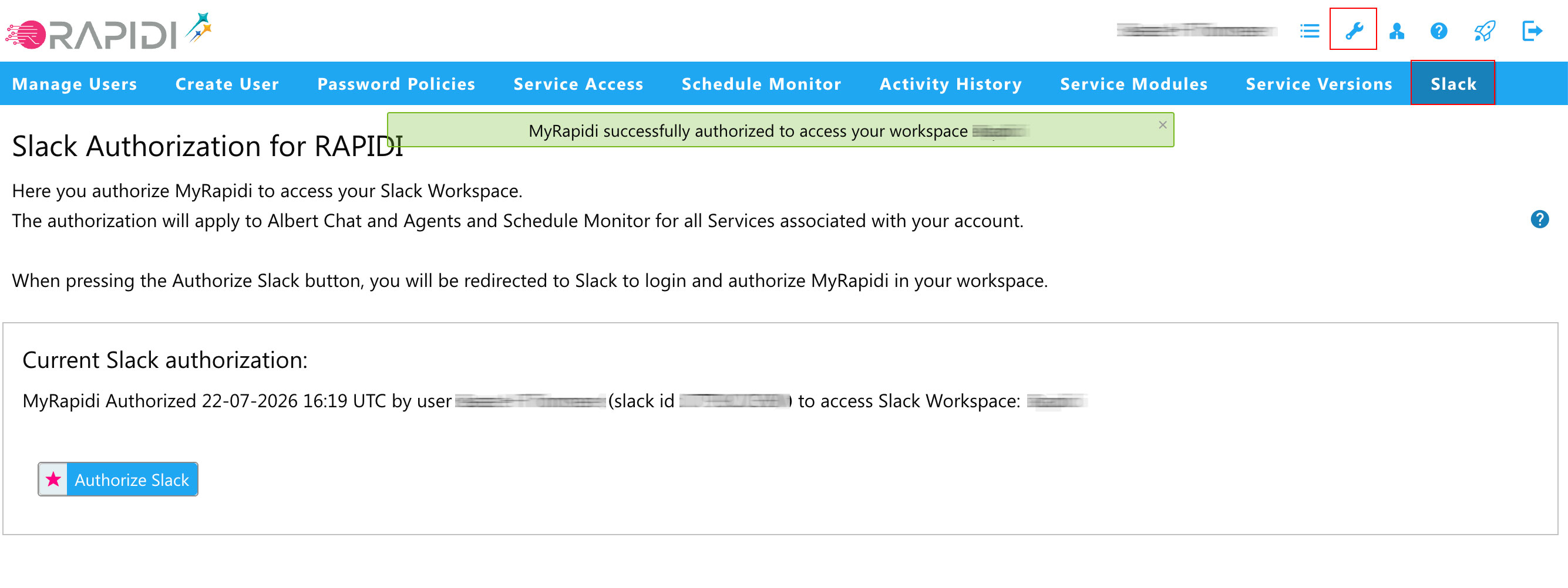
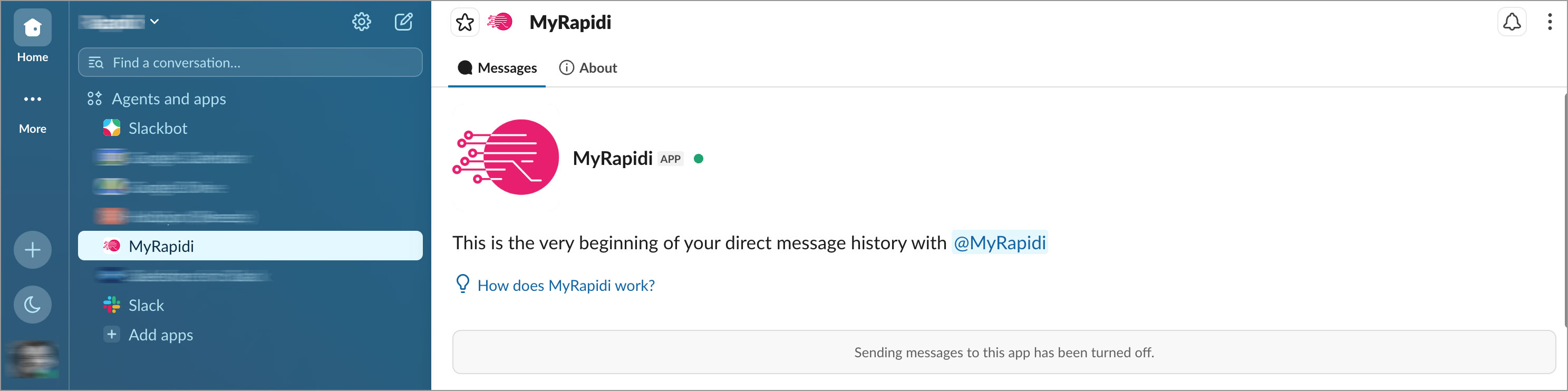
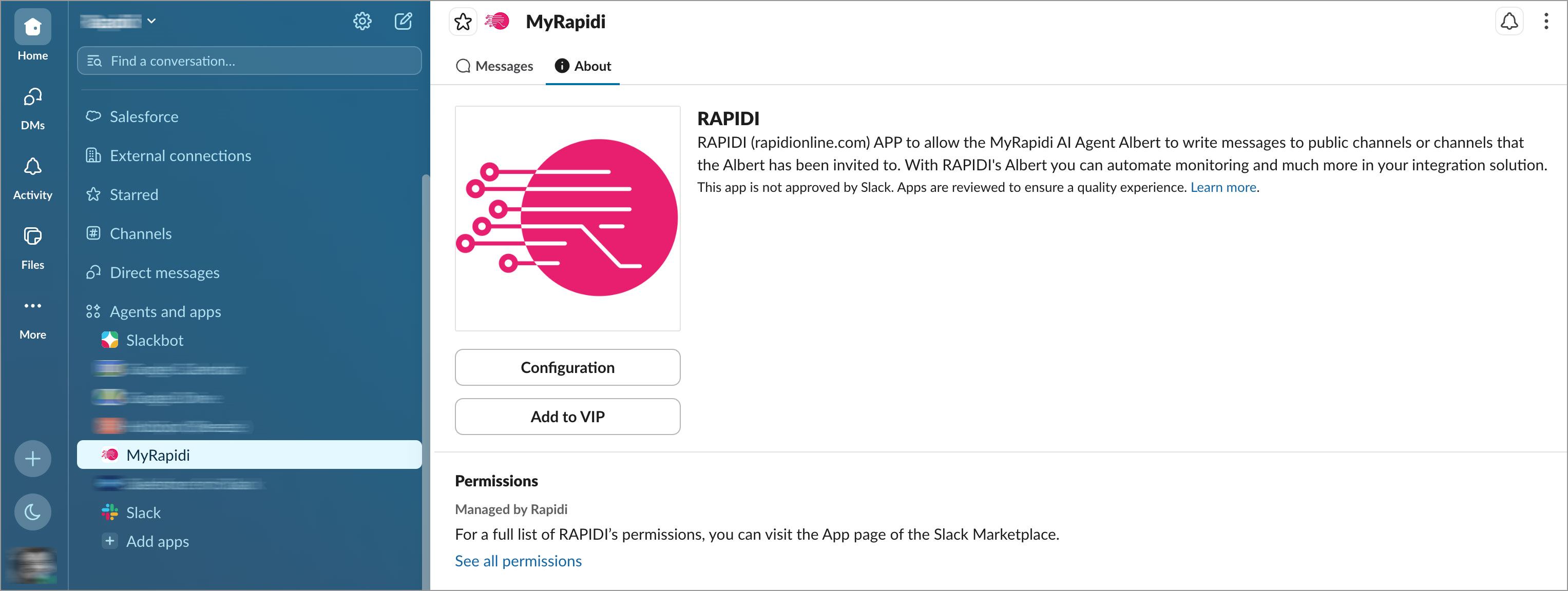
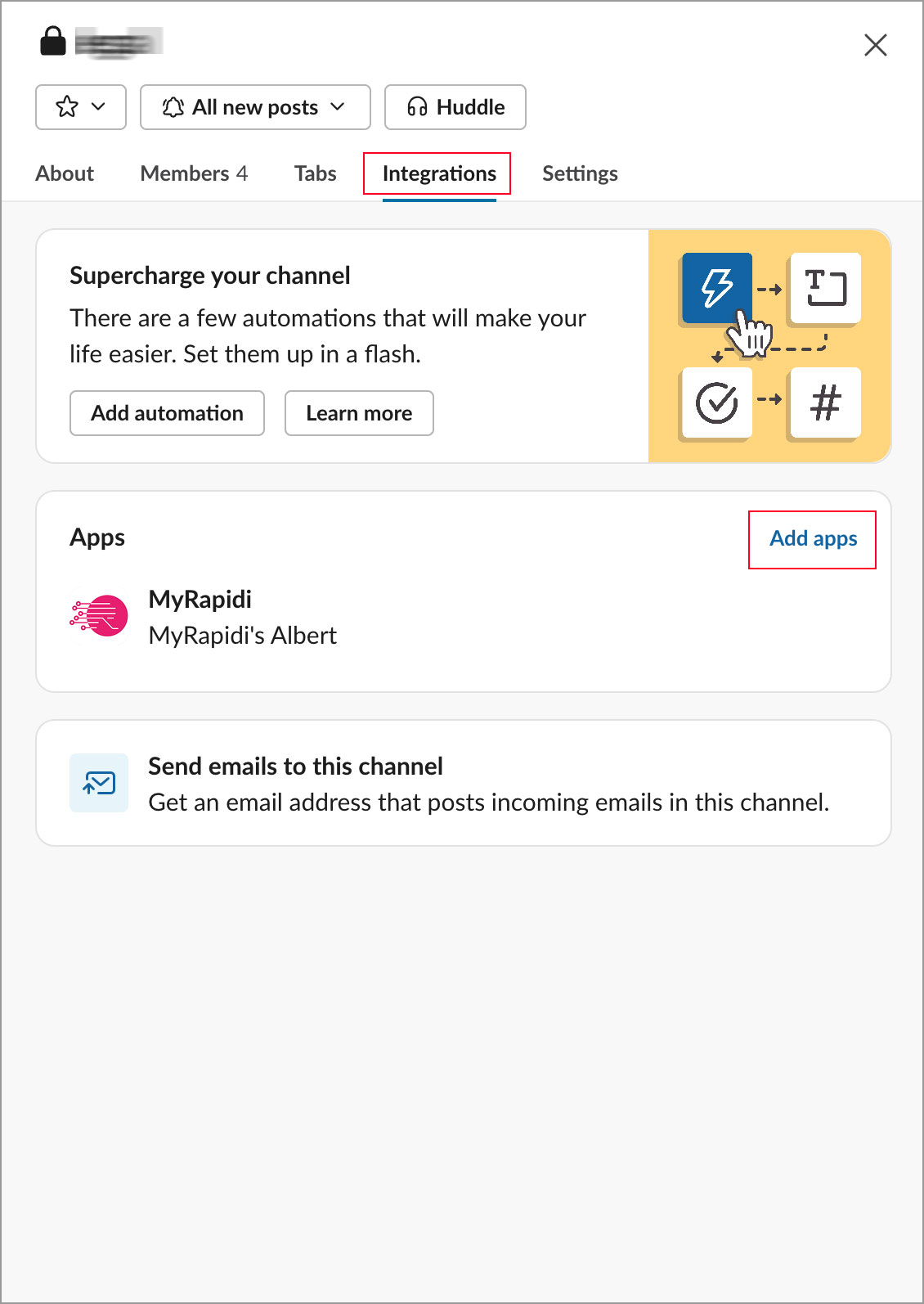
<p>We allow customers to connect to their Slack workspace via Rapidi. However, for the time being, only our AI Albert can use the Slack connection and write to channels.&nbsp;<br><br></p><p><strong>Note: Only admins can perform this action, and it must be done from the Account tab.<br><br></strong><br></p><ul><li><strong>Log in to Rapidi</strong> and navigate to the <strong>Account</strong> tab at the top of the screen.</li><li>Select the <strong>Slack</strong> option from the top navigation bar.</li><li>On the Slack Authorization page, click the <strong>Authorize Slack</strong> button.</li></ul><p><br></p><p></p><img src="/rails/active_storage/blobs/eyJfcmFpbHMiOnsibWVzc2FnZSI6IkJBaHBBbmtEIiwiZXhwIjpudWxsLCJwdXIiOiJibG9iX2lkIn19--eef1889e4ce3faedb777a0b3fe480762018467c1/Rapidi%20Account%20Authorize%20Slack.png" width="640"><br><br><br><br><br><br><br><br><p></p><ul><li>You will be redirected to <strong>Slack</strong>. A permissions screen will appear asking you to grant Rapidi access to your Slack workspace.</li></ul><p><br></p><p></p><img src="/rails/active_storage/blobs/eyJfcmFpbHMiOnsibWVzc2FnZSI6IkJBaHBBbm9EIiwiZXhwIjpudWxsLCJwdXIiOiJibG9iX2lkIn19--4b519acbb6e5b09d9f7b821ddded167d3eebfa80/Slack%20Redirect%20to%20workspace.png" width="320"><br><br><br><br><br><br><br><br><br><br><p></p><ul><li>Click <strong>Allow</strong> to approve the requested permissions:</li></ul><ol><li>View content and info about channels and conversations.</li><li>Perform actions in channels and conversations.</li></ol><ul><li>Once authorized, you’ll be redirected back to Rapidi with a confirmation message at the top of the screen.</li><li>You should now see the authorization details, including your Slack workspace name and the authorized user information.</li></ul><p><br><br></p><p></p><img src="/rails/active_storage/blobs/eyJfcmFpbHMiOnsibWVzc2FnZSI6IkJBaHBBbnNEIiwiZXhwIjpudWxsLCJwdXIiOiJibG9iX2lkIn19--e6b7f57e9b87355aeb779b01a1a5760a5335cbe8/Slack%20Authorization.png" width="800"><br><br><br><br><br><br><br><br><br><br><img src="/rails/active_storage/blobs/eyJfcmFpbHMiOnsibWVzc2FnZSI6IkJBaHBBbmdEIiwiZXhwIjpudWxsLCJwdXIiOiJibG9iX2lkIn19--845f4131f5afec2991fddddea2f27ccce31fff6f/image.png" width="640"><br><br><br><br><br><br><br><br>✅ That’s it! Rapidi is now connected to your Slack workspace and ready to support your data integration workflows.<p></p>
</template></turbo-stream>

<turbo-stream action="replace" target="meta_description"><template><meta content=' How to Connect Rapidi to Your Slack Workspace (Admin Only)' id='meta_description' name='description'></template></turbo-stream>
<turbo-stream action="replace" target="meta_keywords"><template><meta content='Connect Rapidi to Slack' id='meta_keywords' name='keywords'></template></turbo-stream>
<turbo-stream action="update" target="meta_title"><template> How to Connect Rapidi to Your Slack Workspace (Admin Only) - MyRapidi Wiki</template></turbo-stream>
<turbo-stream action="prepend" target="flash"><template></template></turbo-stream>